Tracking your orders
Every boost you place — on the website or in the Telegram bot — lands in one shared history with live delivery progress.
Where to look
- Delivery console — inside the Boost dashboard (https://onflowads.com/telegram/dashboard/boost), the "Console" view shows each order as a card with a progress ring, badges (PRIORITY, GUARANTEE, DRIP), a status pill, and a progress bar. Filter with the tabs All / In progress / Completed / Needs attention.
- Your Orders page — https://onflowads.com/telegram/dashboard/boost/orders is the full history with tabs All / Active / Completed / Refunded, a search box (order ID, link or service name), a platform filter, an Export CSV button and a Load more pager. Search and filters run on the server, so they reach your entire history, not just the rows on screen.
The pages update live — when an order's delivery changes, the list refreshes within moments without you reloading. A Refresh button is there too.
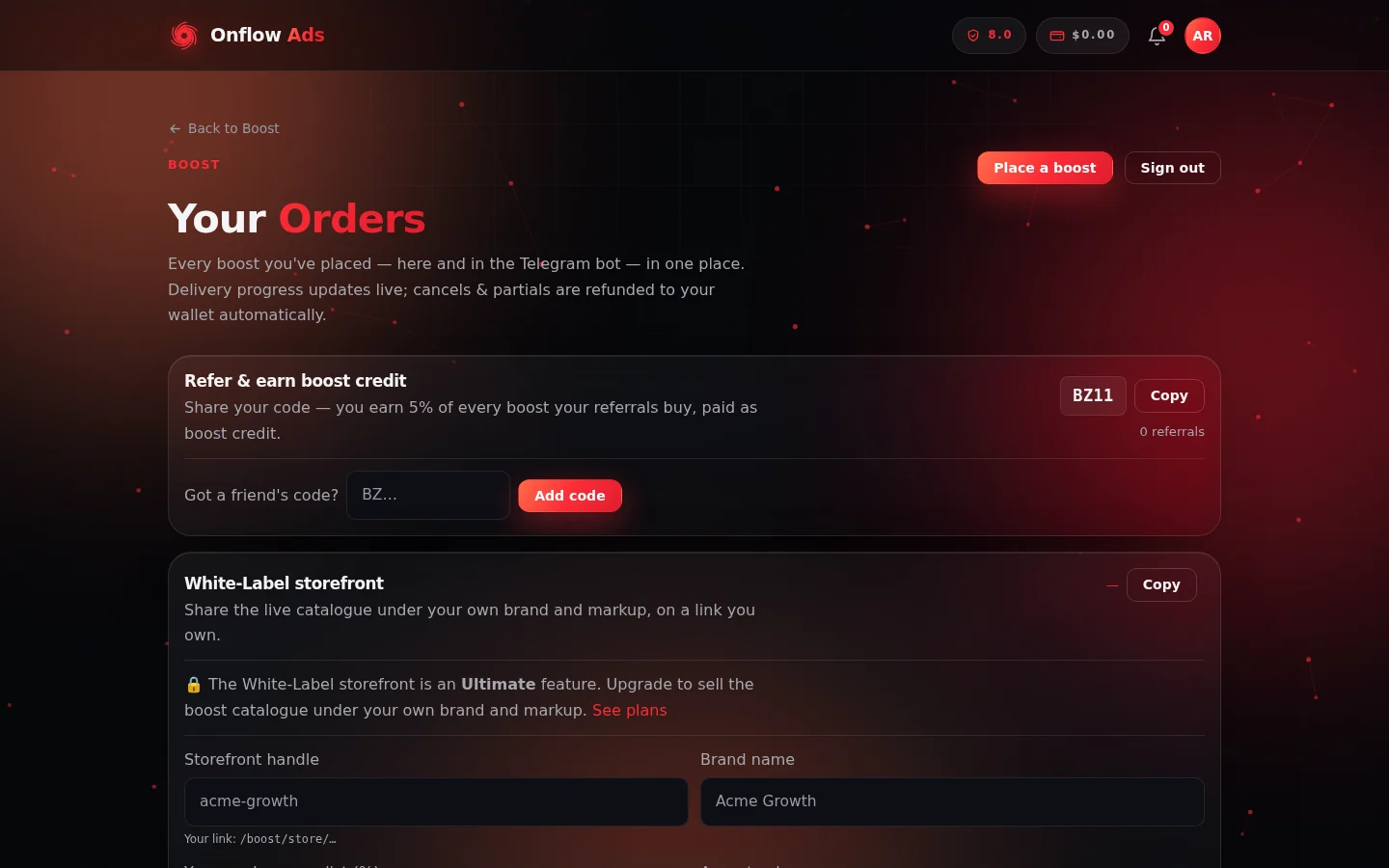
Your Orders. The header carries your reliability score, wallet balance and notifications; the refer-and-earn and White-Label cards sit above the order history itself.
Order statuses
| Status | Meaning |
|---|---|
| Submitting | Charged and being handed to a delivery provider. If this ever gets stuck, the order auto-refunds — you're never left charged for nothing. |
| Scheduled | Charged and waiting for the launch time you picked. Can be cancelled for a full refund until it launches. |
| Submitted / Pending | A provider accepted the order; delivery hasn't started yet. |
| Queued | Waiting in the provider's queue. |
| Processing / In progress | Actively delivering. |
| Completed | Delivered in full. |
| Partially delivered | The provider delivered part and stopped; the undelivered remainder is refunded to you automatically, pro-rata. |
| Canceled | Stopped before finishing (usually at your request). The undelivered remainder the provider returns is refunded; delivered units are kept. |
| Refunded | Fully refunded (e.g. no provider accepted it, or it was cancelled before any delivery). |
| Error | It couldn't be placed — refunded in full automatically. |
Understanding the numbers
Open an order's detail (press "Detail" on its card) to see:
- Start count — the metric's value on your channel/post when delivery began. Progress is measured from this snapshot.
- Delivered / Delivered peak — how much has arrived (quantity minus what remains).
- Remains — the units still to deliver.
- Charge — what you paid, split into boost credit and wallet cash.
- The delivery timeline — a timestamped event log of the whole life of the order: created, accepted by a provider, started, drip runs, checks, refill requests, refunds. This is the same timeline shown on the public proof page.
- Orders with a guarantee also show their drop checks (day 7 / day 30 re-measures).
From the detail you can also Request refill, Cancel remainder and Report a problem where applicable — see Refills and Cancellations and refunds.
Exporting your history (CSV)
On the Orders page, press Export CSV. The export honours whatever filters and search you have applied, so it matches what you're looking at.
- CSV export is a member feature (paid plans). If your plan doesn't include it, the button explains which plan unlocks it.
- Column depth grows with your plan: base plans get the operational columns (what, where, how many, status, charge); higher plans add the full money split (list, discount, credit vs cash, refunds, coupon) and, at the top plans, raw identifiers for data pipelines.
Reporting a problem
If something is wrong with a specific order — nothing arrived, it stopped short, it's too slow, the count dropped, the target was wrong, or quality is poor:
- Open the order and press "Report a problem".
- Pick what's wrong from the list (Nothing delivered / Partly delivered, stopped short / Delivery too slow / Delivered then dropped / Wrong link or target / Low-quality delivery / Other) and describe it.
- Press Send report.
This opens a support ticket pre-loaded with the order's full context, and gives you a ticket code so you can follow the conversation in the support area of the site.
After the order settles
Two things a settled order (Completed or Partially delivered) unlocks, each with its own page:
- Rate the service. Open the "Rate this boost" dialog from the order row, pick 1–5 stars and press Submit review — the full flow, anonymity and standards check are on Verified-buyer reviews.
- Share the delivery proof. Every settled order has a public proof page at
https://onflowads.com/boost/proof/YOUR-ORDER-ID— no price, no buyer identity, unguessable link. Details on Delivery proof pages.
Next: if a delivered count slips afterwards, Refills explains how to top it back up.