Notifications
Everything that happens on your account — payments, orders and platform updates — lands in one notification feed. You can read it from the bell in the header on any page, or from the full notification center. On top of the in-app feed, the same events can reach you by email and by Telegram DM, each under your control.
The bell
On every signed-in page, a bell icon sits in the header next to your avatar:
- A badge shows your unread count (capped at "99+").
- Click the bell to open a popover with your latest notifications. Click any notification to jump straight to the thing it is about (an order, your wallet, and so on) — opening it also marks it read.
- Mark all read clears the badge in one click.
- See all notifications opens the full center.
The notification center
Open https://onflowads.com/telegram/dashboard/notifications (or the bell's "See all notifications" link). The page has two tabs: History and Settings.
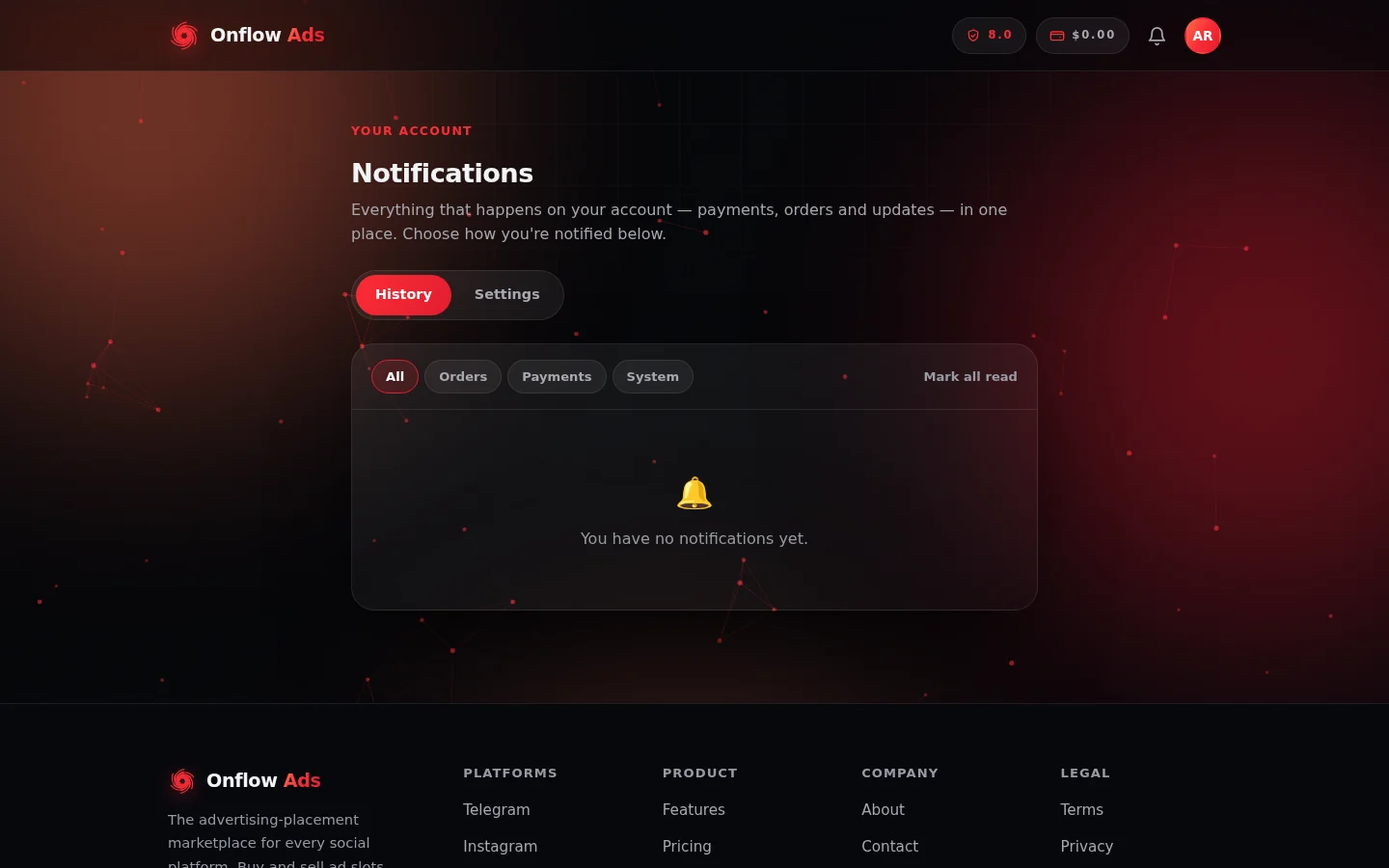
The notification center on a new account. History is your full feed with its filter chips; Settings, the tab beside it, is where you choose email and Telegram delivery.
History
Your complete feed, newest first, with filters: All, Orders, Payments, System. Use Mark all read to clear everything, and Load more to page back through older items.
Settings
Choose how you are notified about each type of update. Your in-app notifications (the bell) always stay on — the toggles control the extra delivery channels:
| Notify me about | What it covers | Telegram | |
|---|---|---|---|
| Orders | Requests, acceptances, delivered posts and completions | toggle | toggle |
| Payments | Successful and failed wallet top-ups | toggle | toggle |
| System | Account, security and platform updates | toggle | toggle |
Changes save automatically — you will see a brief ✓ Saved confirmation.
Telegram delivery only works once you have started our bot and linked it to your account. If you have not, the Settings tab shows a note with a Start our bot link — after that, every notification you have toggled on arrives as a Telegram DM at the same time as your email.
Email frequency: instant or digest
Below the toggles, the Email frequency selector controls how notification emails arrive:
- Send each email right away (default)
- Hourly digest — one roundup email per hour
- Daily digest — one roundup email per day
On a digest setting, non-urgent notification emails are batched into a single roundup so your inbox stays quiet. Time-sensitive alerts always arrive right away, even on a digest — a failed payment, a declined order with its refund, your ad going live, a rejected withdrawal, or a paused Auto-Boost subscription.
Digests batch email only. The in-app feed and Telegram DMs are always delivered immediately.
Browser (push) notifications
On top of the bell, email and Telegram, Onflow Ads can also reach you through your browser's own notification system — used for occasional platform announcements, these pop up on your device even when the site's tab is not in front of you. Clicking one opens the page it is about.
How you turn it on:
- A small, dismissible "Enable notifications" pill (a bell icon, bottom-left of the page) offers it a few seconds after a page loads. Clicking the pill opens your browser's own permission prompt — allow it, and push delivery is set up for that browser.
- Onflow Ads never opens the permission prompt on its own — only your click on the pill does. If you dismiss the pill with the ×, the choice is remembered and it will not nag you again in that browser.
A few things worth knowing:
- The pill only appears where browser notifications are actually available — a browser that supports them, with the feature enabled on the site, and where you have not already allowed or blocked notifications for onflowads.com.
- Permission is per browser, per device. Allowing it on your laptop does not affect your phone.
- To turn it off later, use your browser's site settings for onflowads.com (usually the padlock/settings icon next to the address bar) and set Notifications to Block. There is no on-site toggle for push.
Marketing emails and unsubscribing
Two different kinds of email leave Onflow Ads, and they are controlled separately:
| Kind of email | What it includes | How you control it |
|---|---|---|
| Account and order emails | Receipts, delivery updates, security notices, and the notification categories above | The Settings tab toggles and the email-frequency selector on this page |
| Marketing and lifecycle emails | Occasional product updates, offers, and nudges tied to your usage — for example, an email when you hit a monthly allowance that a higher plan would lift. On by default | The unsubscribe link in the footer of any marketing email |
Every marketing email carries an unsubscribe link in its footer. Clicking it opens a small confirmation page on onflowads.com — no sign-in needed — where a single "Unsubscribe me" button opts you out:
- The change applies to marketing emails only. Account and order emails still come through — the page says exactly that.
- Nothing changes until you press the button, so an email scanner following the link can never unsubscribe you by accident.
- Changed your mind? The confirmation you see after unsubscribing includes a Resubscribe link, and every future eligible email would too.
If you keep receiving emails you did not ask for, contact support from https://onflowads.com/contact.
What you get notified about
A few examples of the events that flow through the system:
- Orders — a new promotion request on your channel; your booking placed, accepted, declined (with automatic refund) or delivered; a promotion completing (owners hear about the payout, advertisers about the wrap-up); a Boost order delivered in full or partially delivered with the shortfall refunded; an Auto-Boost subscription pausing.
- Payments — a top-up received or failed, a wallet charge or refund with its reason, withdrawal updates (requested, sent, declined), and a premium membership activating.
- Marketplace — watchlist price drops and auction opportunities appear in your feed as well.
- System — account, security and platform notices.
Some routine events deliberately skip email to avoid clutter — for example, a successful top-up already sends you an invoice email, so the notification itself arrives in-app and by Telegram DM only. Frequent wallet debits are likewise recorded in-app and by DM, with your wallet ledger as the permanent record.
Next: Your reliability score — the trust number that decides what you can start across every engine.