Campaign Lifecycle
Every cross-promotion moves through a defined set of statuses, shown as a coloured pill on the campaign page and in every campaign list. This page explains each status, what you can do in it, and how campaigns end.
Setup states (agreeing the deal)
These are the states while you and your partner are pairing up and agreeing the schedule. The campaign page is fully interactive here.
| Status shown | What it means | What you can do |
|---|---|---|
| Awaiting partner | The code is minted; nobody has joined yet | Creator: copy/share the code, list or unlist it on the board, or cancel. Unused codes expire after 24 hours |
| Awaiting confirmation (shown as In progress in campaign lists) | A partner attached their channel and is reviewing the schedule | Joiner: Accept & confirm or Propose changes. Either side can cancel. Both sides can already build posts |
| New time proposed (shown as Changes proposed in lists) | One side proposed new timing; the other side decides | The decider sees both schedules side by side and presses Accept changes or Decline — see Schedule proposals |
| Confirmed | Both sides locked in the schedule | Build and review posts (Creatives); either side can still Propose new time or Cancel campaign while go-live is ahead |
Delivery states
Once the schedule is confirmed, both posts are built and both reviews are approved, the campaign is handed to our delivery bot and becomes read-only — the page tells you "our bot publishes them at go-live and removes them at the end of the run automatically."
| Status shown | What it means |
|---|---|
| Scheduled | Everything approved; the bot will publish at go-live automatically. You can still cancel |
| Going live | The bot is publishing the posts right now |
| Live now | Both posts are up; results update live |
| Wrapping up | The run ended; the bot is removing the posts |
| Completed | Done — final results and ratings available |
| Didn't run | Delivery failed — the campaign closed without running |
Closed states
| Status shown | What it means |
|---|---|
| Expired | No partner joined within 24 hours (you were emailed) — or a joiner attached but never confirmed, and the campaign was released with the note "Partner didn't confirm in time" (see anti-ghost protections) |
| Cancelled | One side cancelled before go-live; the other side was notified by DM and email |
| Declined | (Bot-run campaigns) the invited partner declined |
Bot-run campaigns can also show Awaiting acceptance and Building posts while being set up in the Telegram bot — those campaigns are managed there.
Cancelling
Cancel campaign is a two-tap button (it arms to Confirm cancel first). The rules:
- Awaiting partner: only the creator can cancel (there's no partner yet). The campaign never counts against your allowance.
- Awaiting confirmation / New time proposed / Confirmed / Scheduled: either participant can cancel.
- Once the campaign starts going live, it can no longer be cancelled — you'll see "This campaign can't be cancelled — it may already be live or finished."
The other participant is always told by Telegram DM and email when a swap is called off.
Expiry, at both ends
Two clocks protect you from a partner who never shows up:
- Unjoined codes expire 24 hours after creation. You're emailed, the campaign shows Expired, and it costs nothing from your allowance. (Blitz codes are exempt — they stay open until launched or cancelled.)
- Unconfirmed joins are released after about 48 hours: if a joiner attaches a channel but never confirms or proposes, the campaign is closed out, the creator is freed (no allowance spent) and the joiner takes a strike. Details in Rules and fairness.
Your campaign lists
My Cross-Promotions
The My Cross-Promotions page is the one place that holds your complete history, whichever surface a campaign was run on.
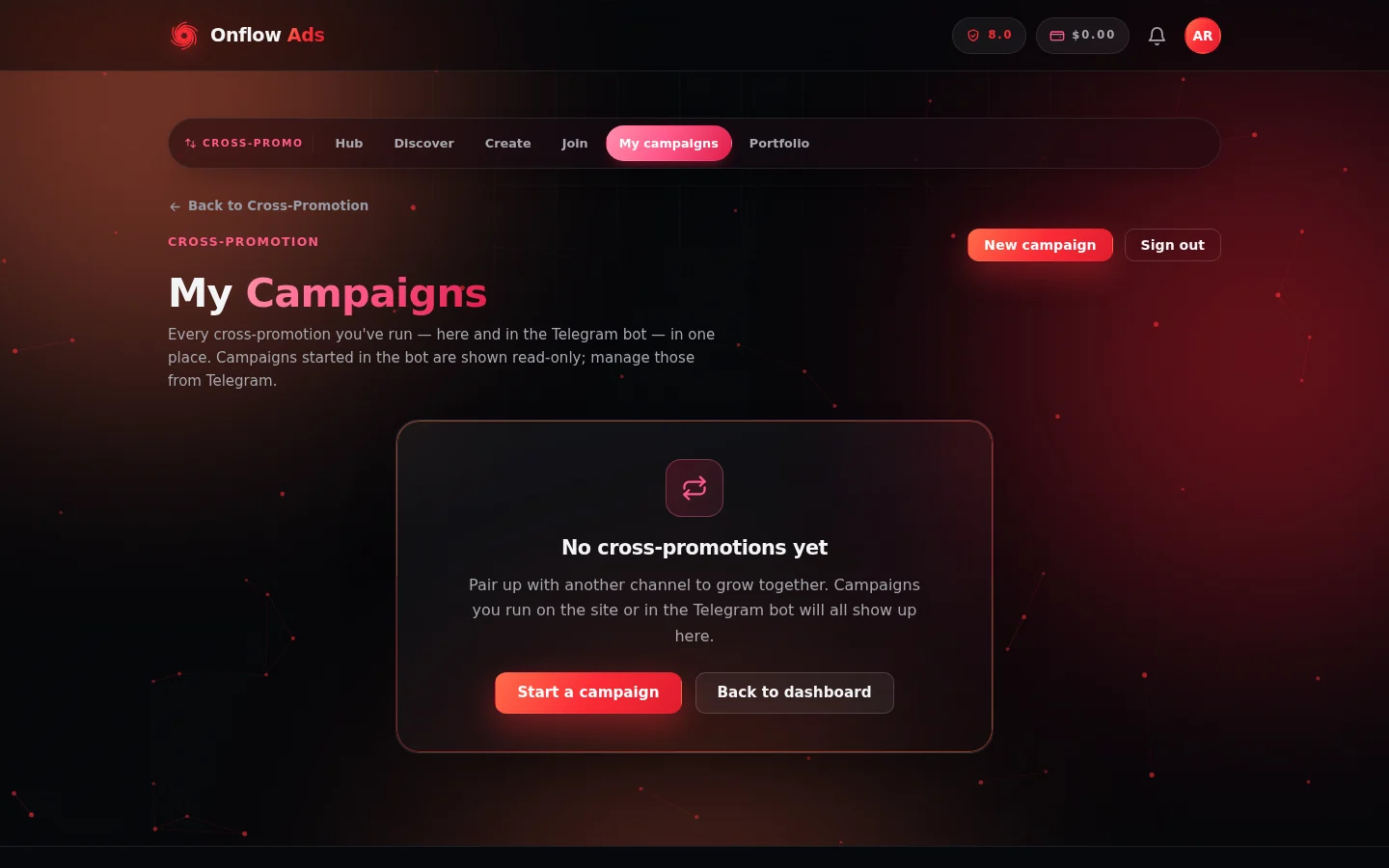
My Cross-Promotions before your first swap. Campaigns run on the website and in the Telegram bot both land on this page.
https://onflowads.com/telegram/dashboard/cross-promotion/campaigns (the My campaigns pill) shows every cross-promotion you've run — on the website and in the Telegram bot — in one place, with filter tabs All / Active / Completed / Ended. Each row shows the channel pairing, status, schedule, code, and a source tag (via Web or via Bot). Website campaigns have a View button into their manage page; bot campaigns are read-only here and labelled Managed in Telegram — open the Onflow Ads bot to manage those.
Your campaigns (manual page)
The manual page lists your website campaigns under Your campaigns, with a + New campaign shortcut — handy while you're actively creating and joining with codes.
Portfolio
If you run several channels, the Portfolio page aggregates activity per channel — active swaps, completions, opens and directory state.
FAQ
Who can see my campaign page?
Only participants. Anyone else opening the link sees "You don't have access to this campaign." A campaign found via the board shows a limited preview until you join it.
The status says Scheduled — do I need to do anything at go-live?
No. Scheduled means the hand-off already happened; the bot posts and removes everything on time. You only act again if you want to cancel before go-live, or when results come in.
What does "Didn't run" mean and what should I do?
Delivery failed — for example, the bot lost admin rights in one of the channels before go-live. Check that the Onflow Ads bot is still an admin of your channel, then start a fresh campaign. If something looks wrong, contact support from the dashboard.
Why does my campaign show "Managed in Telegram"?
It was created in the Onflow Ads Telegram bot, so the bot surface owns its management and delivery. The website shows it read-only for a complete history.
Next: Campaign results — the numbers and proof links a campaign reports once it goes live.