Discovering Partners
You don't need to already know a partner to cross-promote. The Find Partners page at https://onflowads.com/telegram/dashboard/cross-promotion/discover (also reachable from the hub's Find a partner card, or the Discover pill in the sub-navigation) has five tabs:
| Tab | What it does |
|---|---|
| Find partners | Browse the opt-in partner directory, ranked by how well each channel matches yours |
| Open campaigns | Campaigns whose creators listed them publicly — join one directly, no code to swap |
| Requests | Your inbound and outbound swap requests — see Partnership requests |
| Recurring | Partnerships set to repeat — see Recurring promos |
| List my channel | Put your own channel in the directory (see Listing your channel below) |
This page covers the discovery flows: browsing the directory, the open-campaigns board, and opting your own channel in and out of the directory.
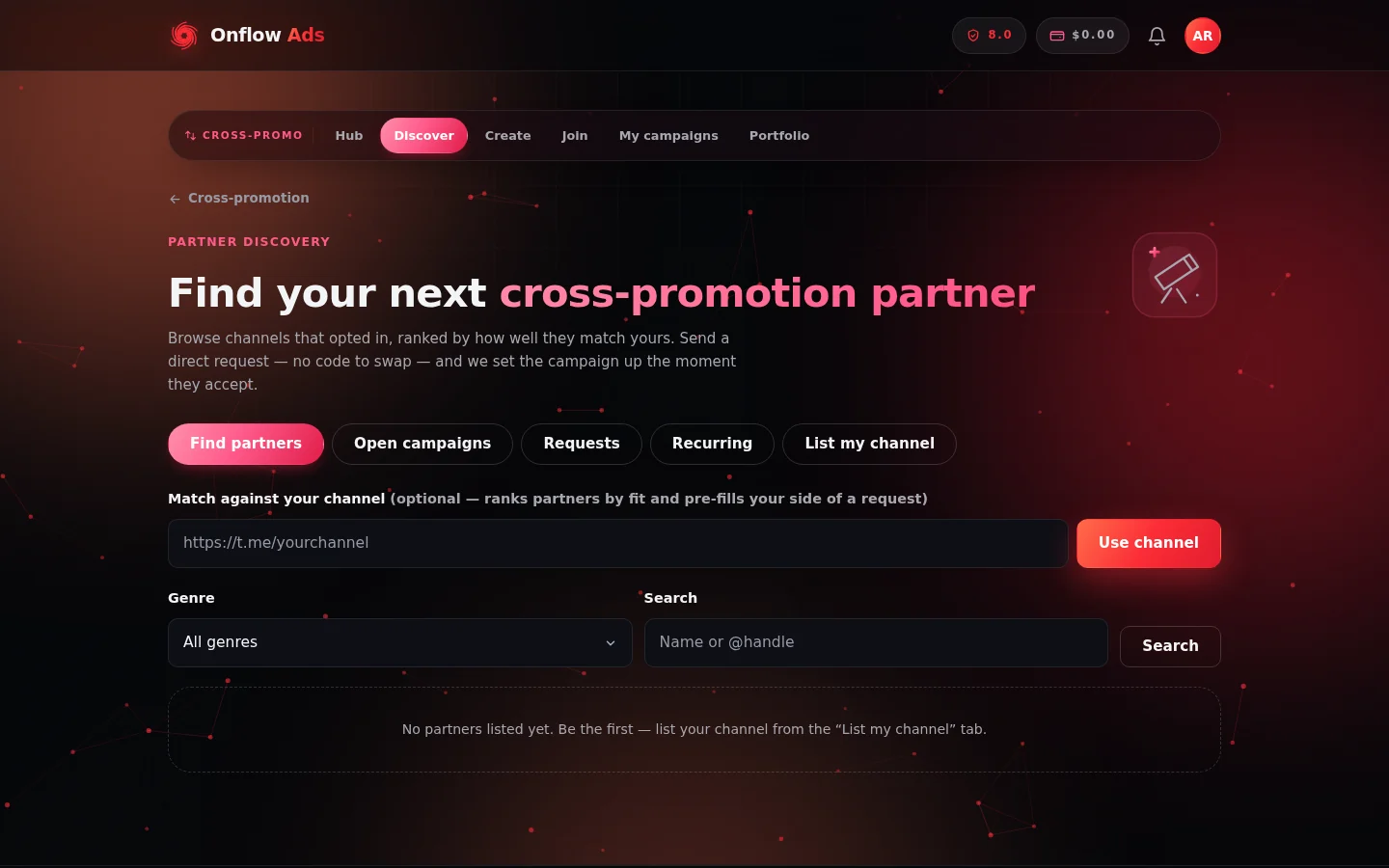
The Find Partners page. Set your own channel at the top first — that is what ranks the results by fit and pre-fills your side of any request you send.
Browsing the directory
- On the Find partners tab, optionally paste your channel link under "Match against your channel" and press Use channel. This is optional but recommended: it ranks partners by fit, shows a size verdict on every card, and pre-fills your side of any request you send. Until you set a channel, results are shown in recency order without size verdicts.
- Filter by Genre, or Search by name or @handle and press Search.
- Each partner card shows the channel's title, @handle, subscriber count, average views and genre, an optional pitch line written by the owner, and the same trust signals used everywhere in cross-promotion:
- the size verdict — Great match, Good match, Fair match or Uneven sizes (shown once you've set your channel);
- their track record — completed and dropped swap counts with a reliability percentage, or "New partner · no completed swaps yet";
- their average star rating from past swaps.
- When you're ready to approach someone, press Request swap on their card — the full request flow is covered in Partnership requests.
Listings marked ★ Featured paid for placement at the top of the results. Featuring buys position only — match verdicts, track records and ratings are never for sale. See Rules and fairness.
When you've set your channel, a "Find my best matches" button appears above the results. It weighs the visible partners against your channel and returns a short ranked list with a one-line reason for each pick. This uses one of your daily AI actions — if you've used them all, the page says so.
Some cards also show a "Book a paid promotion" link — that partner also sells placements through Paid Promotions, so you can buy guaranteed reach from them on top of a free swap.
If no partners match your filters, the page suggests being the first to list: "No partners listed yet. Be the first — list your channel from the 'List my channel' tab."
The open-campaigns board
The Open campaigns tab shows campaigns whose creators chose to list them publicly (via the "List this on the open-codes board" checkbox at creation, or the List on the board toggle on the campaign page). Each card shows the creator's channel, the trust signals, and the Proposed go-live they already set.
- Optionally set your channel on the Find partners tab first — the board then ranks listings by fit and shows size verdicts.
- Press Join this campaign on a card — it opens the join page with the code pre-filled and looked up automatically, and the normal join flow takes over.
Listings drop off the board automatically when they are joined or their code expires. If the board is empty you'll see: "No open campaigns on the board right now. Create one and list it, or check back soon."
Listing your channel in the directory
The directory is strictly opt-in — your channel never appears unless you list it. To become discoverable:
- Open the List my channel tab.
- Paste your channel link under Your channel and press Fetch. The same checks as every other cross-promotion flow apply here: the channel must be public, and you'll be walked through adding the Onflow Ads bot as an admin if it isn't already.
- Pick your Genre and optionally write a Pitch — up to 240 characters shown on your directory card (the placeholder suggests the style: "e.g. Daily crypto alpha, 12k engaged traders — open to weekly swaps.").
- Press List my channel. You'll see "Your channel is now discoverable."
Managing your listings
Your listings appear under Your listings on the same tab, each with a Listed or Hidden badge. From there you can:
- Remove from directory — hides your listing immediately. The listing is kept, so you can press List again later to reactivate it (with its saved genre) in one click. While hidden, partners cannot find you or send you requests from the directory.
- ★ Feature — pay to pin your listing to the top of directory browsing for a set number of days. The exact price and duration are shown on the button itself — for example "★ Feature — $1.99 / 7 days" — and higher plans get a discount, up to free on the top plan. Pressing it arms a "Confirm — charge my wallet" step before your wallet is charged. While featured, your card carries a ★ Featured badge and the listing shows "Featured until" its end date. A listing can't be featured twice at once — the Feature button reappears when the current run ends.
You can also list or unlist channels in bulk from the Portfolio page, and an AI pitch drafting helper can write your directory blurb from your channel's own profile — you always review the draft and press Use this pitch before it is saved.
FAQ
Why don't I appear in the directory?
Listing is opt-in — add your channel from the List my channel tab. If you removed the listing earlier, it shows as Hidden; press List again to reactivate it.
Does removing my listing affect running campaigns?
No. Unlisting only removes you from directory browsing; campaigns you're already part of continue as normal.
Can I list more than one channel?
Yes — repeat the listing flow for each channel you own. Each channel gets its own card, genre and pitch. The Portfolio page shows the listed/unlisted state of every channel in one place.
Next: Partnership requests — once you have spotted a partner in the directory, this is how you approach them.