Browsing the Marketplace
The catalog at https://onflowads.com/telegram/dashboard/paid-promotion/catalog (the Marketplace pill in the navigation bar) lists every verified channel currently taking bookings. This page covers finding and shortlisting channels; a channel's full detail page is covered on Reading a channel page, and saving channels for later on Watchlist and price alerts.
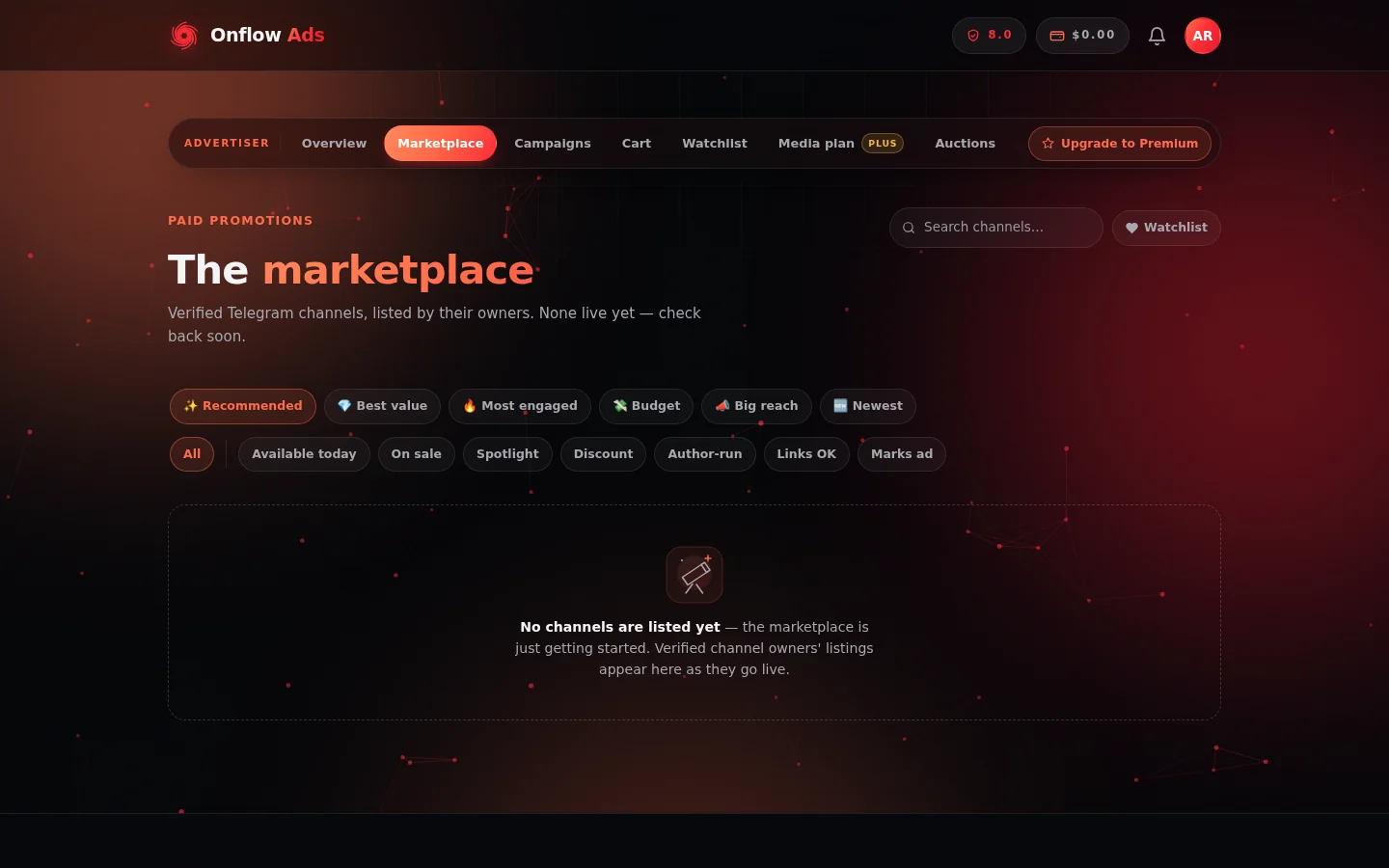
The marketplace. Everything you need to narrow the list sits above the grid: search on the right, the quick-view sort presets on the first chip row, and the tag filters on the second.
Each catalog card shows the channel's name and handle (with a green check if it passed platform verification), its category, subscribers, average views, engagement rate (ER — views as a share of subscribers), its cheapest live price ("from …") and its CPM (cost per 1,000 views). The header above the grid always states the total channel count and what the list is currently sorted by.
The catalog's default ordering is honest by design: a paid boost never outranks a materially bigger channel, and the page says so under the header. Featured and sponsored placements are always labelled — a paid top slot never pretends to be an organic result.
Search
The "Search channels…" box filters the grid as you type (results update after a brief pause, so the list doesn't flicker under your fingers).
Quick views
One-tap sorting presets — exactly one is active at a time, and the header restates which:
| Chip | What it sorts by |
|---|---|
| ✨ Recommended | Featured first, then fit (reach, rank, standing) — the default |
| 💎 Best value | Lowest cost per 1,000 views |
| 🔥 Most engaged | Engagement rate, showing channels at 3% or higher first |
| 💸 Budget | Cheapest first |
| 📣 Big reach | Most subscribers first |
| 🆕 Newest | Most recently verified |
Category and tag filters
-
Category chips — click a category to browse only that category; "All" clears it. One category at a time.
-
Tag chips — toggle any combination of filters:
Tag Shows only channels that… Available today Accept bookings that can run today (short lead time) On sale Have any live discount Spotlight Are running a limited-time flash deal on a format Discount Offer an owner perk discount Author-run Are run by their author Links OK Allow external links in ad posts Marks ad Label sponsored posts as ads -
Watchlist — the heart-labelled toggle next to search shows only channels you've saved.
If your filters match nothing, the page says "Nothing matches those filters" with a one-click "Clear filters" button. If the page can't load at all, you'll see "We couldn't reach the marketplace just now" with a Retry button — a connection problem, never an empty marketplace.
What the card badges mean
| Badge | Meaning |
|---|---|
| ★ Sponsored | The channel's owner paid for the top slot on this category page — always disclosed, and always shown first on the card |
| Featured | Appears in the "Featured channels" rail above the grid — a paid or plan-included promotion by the owner |
| −N% (spotlight) | The owner is running a limited-time flash deal on one format |
| ⚡ Today | The channel accepts bookings that can run today |
| NEW · first look | A newly verified listing you're seeing before the wider marketplace — an early-access perk on the top plan |
| Green check next to the name | The channel passed platform verification |
Comparing channels side by side
You can compare up to 3 channels at once:
- Click the compare arrows icon on a catalog card (next to the heart). A "Compare" tray appears at the bottom of the screen. (Trying to add a fourth tells you the limit.)
- Add up to two more channels the same way — remove one with the ✕ on its avatar in the tray, or "Clear" to start over.
- Click "Compare N" in the tray (it enables at 2+ channels).
An overlay table shows Subscribers, Avg views, Engagement, CPM, From price and Category side by side, with the best value in each numeric row highlighted in green ("Best"). For CPM and price, lower is better — the overlay's footnote says so. Click "View →" under any column to open that channel's page, or press Escape to close.
From browsing to booking
- Open a channel — click any card. See Reading a channel page for every section of the listing: standing grade, measured stats, audience quality, price history, the performance passport, formats and rates, availability, and reviews.
- Save it for later — tap the heart. See Watchlist and price alerts for daily price tracking and drop alerts.
- Book it — the channel page's "Book a post →" button opens the booking composer.
FAQ
Why does a smaller channel rank above a bigger one under "Recommended"?
Recommended weighs fit — reach, rank and standing together — and featured listings surface first. But the ceiling holds: a paid boost never outranks a materially bigger channel. Switch to 📣 Big reach for a pure subscriber sort.
What's the difference between "Sponsored" and "Featured"?
★ Sponsored is the single paid top slot on a category page, shown above the grid. Featured channels appear in the "Featured channels" rail. Both are always labelled — neither ever pretends to be an organic result.
A channel disappeared from the catalog
Owners can pause or remove their listings at any time. If you'd saved it, it stays on your watchlist with an "Unavailable" badge so you'll notice if it returns.
Next: Reading a channel page — how to judge a shortlisted channel before you spend on it.