Listing Your Channel
Listing happens in a four-step wizard at https://onflowads.com/telegram/dashboard/paid-promotion/new — the Add channel pill in your Paid Promotions subnav. The page promises "Four steps — most owners are live in under five minutes", and that is usually true. Buyers only ever see verified, measured reach: your subscriber and view numbers are pulled from Telegram by the bot, not typed in on trust.
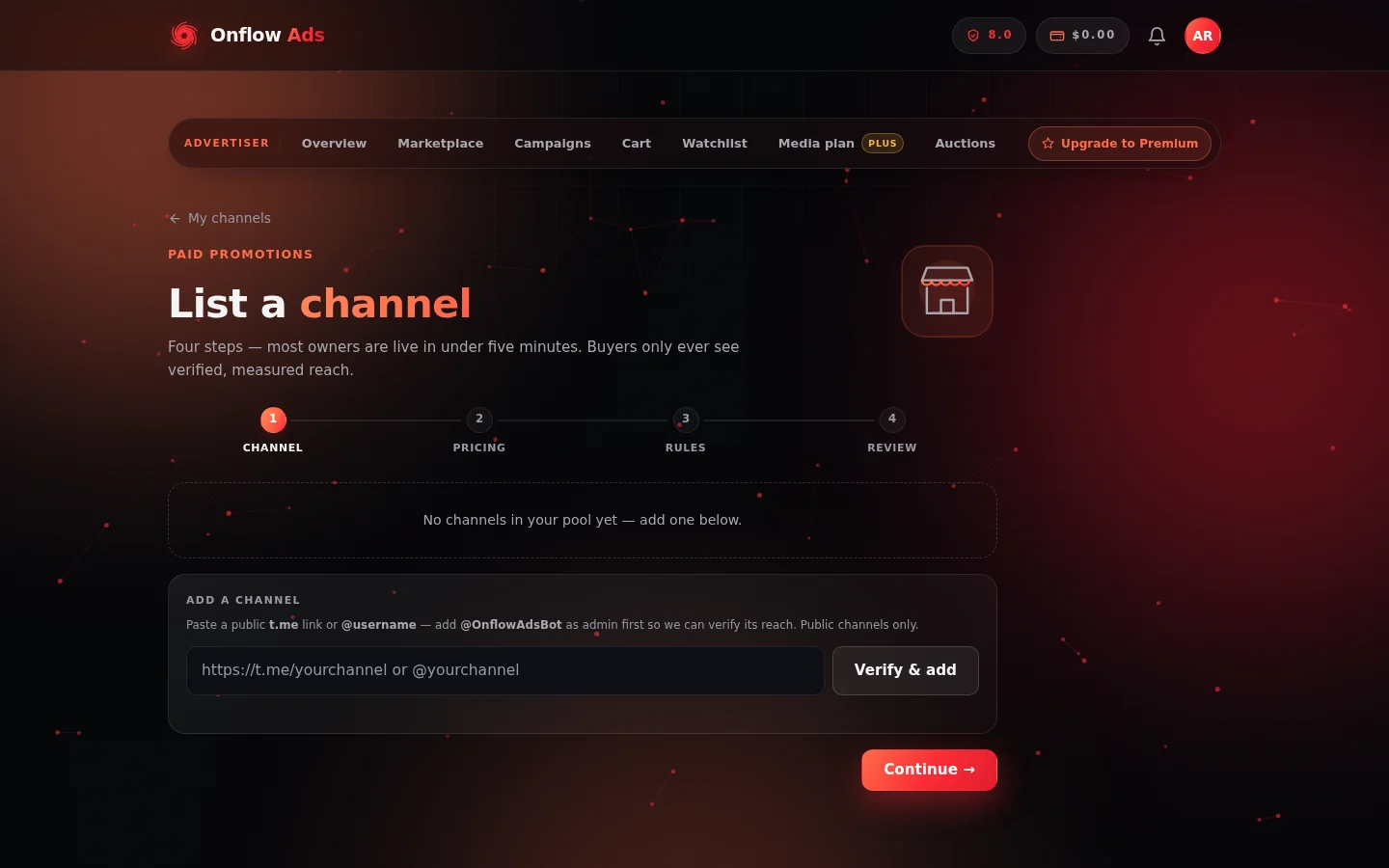
Step 1 of the wizard. The rail across the top is the whole job: Channel, Pricing, Rules, Review. On a fresh account the pool is empty, so you start by pasting your public channel link into the box.
Before you start
- Your channel must be public and have at least 1,000 subscribers (the exact current minimum is shown if your channel falls short, alongside your channel's real count).
- Add @OnflowAdsBot as an administrator of your channel, with the Post Messages right switched on. The bot needs this to confirm the channel, measure its reach from recent posts, publish auto-posted ads, and later monitor delivered ads. Without it the wizard stops and asks for it.
- Sign in and make sure your account has the Channel Owner role — see Becoming a channel owner.
- Link your Telegram account if you want the instant path. Automatic verification also checks that your linked Telegram account is an admin of the channel.
Each plan covers a set number of listed channels, and the top plan is unlimited. If you are at your ceiling, adding another is refused with a message naming your plan and its limit ("Your ... plan covers N channels. Upgrade to list more.", or "Free accounts can list up to N channels."). Removing a channel frees a slot.
Step 1 — Channel
Pick or add the channel.
- If you already have channels in your pool, pick one from the cards at the top. Each card shows the handle, subscriber count and current status.
- To add a new one, paste a public
t.melink or@usernameinto the Add a channel box and press Verify & add. Onflow Ads confirms the channel exists, that it is a public channel (not a group or a user), that @OnflowAdsBot is an admin, and reads the live subscriber count. Re-adding a channel already in your pool simply returns it.
Common answers at this step:
| What you see | What it means |
|---|---|
| "Add @OnflowAdsBot as an admin of that channel first, then try again." | The bot is not an administrator of the channel yet |
| "Only public Telegram channels can be verified — that looks like a group or user." | The link points at a group, a user, or a private chat |
| "Paid Promotions channels need at least N subscribers. This channel has M." | Below the marketplace floor |
| "Enter a public Telegram link, e.g. https://t.me/yourchannel." | The link could not be read as a public handle — invite links of the "plus" form and joinchat links are not accepted |
| "We couldn't reach Telegram from our server right now." | A temporary connection problem; try again in a moment |
Then fill in the channel panel. Once a channel is selected you can:
- Change photo / Remove photo — the logo is pulled from Telegram; you can upload your own (JPG, PNG or WebP, up to 2 MB).
- Edit the Channel name buyers see (up to 120 characters).
- Pick a Category — "where your channel is listed and discovered". Required.
- Answer "Where do your subscribers come from?" — a short, honest description of your traffic sources, for example "Organic growth from Reddit and cross-promos with other book channels — no paid or bot traffic." Buyers see this on your channel page, and it is required before you can publish.
A green line at the bottom of the panel confirms the state you are in: "@OnflowAdsBot verified as admin · reach measured from recent posts".
Press Continue to move on. The wizard will not advance without all four: a selected channel, a name, a category, and a subscriber source. Each missing item gets its own prompt, for example "Choose a category so buyers can find your channel."
Step 2 — Pricing
You price each placement slot in whole US dollars. The wizard collects four:
| Slot | What the buyer gets |
|---|---|
| 1h top · 24h feed | Pinned to the very top for 1 hour, then stays in the feed for a full day. Required — marked with a green "Required" badge; it cannot be switched off. |
| 2h top · 48h feed | Two hours pinned, then two days in the feed. Optional — "Longer pin, longer tail". |
| 3h top · 72h feed | Three hours pinned, then three days in the feed. Optional — "Weekend-friendly". |
| Native · 7 days in feed | A softer, longer-lived placement that stays in the feed for a week. Optional — "Premium anchor slot". |
- Use the switch on the right of any optional row to stop offering it; the row dims and reads "not offered". An owner can sell as few as the one required slot.
- Prices must be at least $1 on the required slot. Trying to continue without one gets "Set a price for the required 1h top · 24h feed format."
Suggested pricing. The panel at the top of this step proposes a price for each format and shows the reasoning:
- With enough comparable channels in your category, the suggestion is drawn from what those peers actually charge, scaled to your subscriber count.
- When the category is too thin to learn from, it is estimated from your reach and the panel says so.
- When your category is booking unusually hot, a surge is added and the reason is named.
Press Apply suggestions to fill every empty format in one tap, then adjust freely. The panel confirms how many formats it filled and how many it left alone because you had already priced them.
Prices left under the going market rate are money left on the table on every booking. Revisit the suggestion panel occasionally — it reflects live category demand. Full detail in Prices and offers.
The marketplace supports further formats you may see on rate cards elsewhere (30 days in feed, forward or repost, permanent pin). The wizard collects the four core slots; everything priced on your listing appears on your listing manager's rate card.
Step 3 — Rules
Four panels, all optional except that the defaults do apply if you skip them:
- Buyer perks — your offer, moves your payout too. Two discounts, each Off, −5%, −10% or −15%: Repeat buyers (an advertiser who has booked you before) and First-time buyers (their first booking on your channel). They come out of your price, so they come out of your payout. New listings start at −10% repeat and −5% first-time.
- Lead time — how fast can an ad run? Same day, Within 24h, or 48h+. Short lead times qualify your channel for the "Available today" filter, "the highest-spending segment on Telegram". You can change this later without re-verifying — see Managing your availability.
- Auto-post & pin. When on, the bot publishes the ad at the window open, pins it for the promised hours, and unpins on expiry, so you never miss a deadline. This sets your listing's default; it is still opt-in per booking at accept time. On by default.
- Prohibited topics — declined at pre-flight, before they cost you. Tap to refuse Gambling, Adult, Politics, Crypto shills or Loans. Bookings for a prohibited topic are stopped before they ever reach your queue, so they cost you neither time nor reliability. New listings start with Gambling and Adult selected.
Step 4 — Review and publish
The review screen is a ledger of everything you set — channel, category, each priced format, perks, lead time, auto-post, prohibited topics, subscriber source — and ends with your estimated payout on a 1h top placement after the platform fee.
Tick the terms box: "I confirm I own or manage this channel and agree to the Paid Promotions terms — verified metrics, honest delivery, and payouts released only after our monitor proves the post ran." Then press Publish listing.
The two outcomes
"Listing is live" — automatic verification succeeded. The bot confirmed the channel, confirmed it holds the rights it needs, and confirmed your linked Telegram account is an admin; the live subscriber count was read and stored, so the marketplace shows reality rather than a typed number. Your listing is in the marketplace immediately.
The screen adds a detail worth knowing: for the first 48 hours after a listing is first verified, it is shown only to advertisers on the top plan — "first-look inventory" — and then to the whole marketplace. Those are among the highest-spending buyers on the platform, so the first two days are not dead time.
"Submitted for review" — the listing went to the manual verification queue: "Your channel is in the verification queue. It goes live in the marketplace as soon as it's approved — we'll let you know. Until then it stays on your desk marked Pending." This happens when:
- your plan does not include instant verification; or
- your Telegram account is not linked, or is not an admin of the channel; or
- the audience figure on the listing is far above the live count the bot reads, which is checked deliberately so an inflated number cannot auto-list.
Either way you are told the outcome twice: an email, and — if your Telegram is linked — a bot message ("Your channel is live!" or "Channel needs attention" with the reason), each carrying a Manage channel button straight to that listing.
While a listing is Pending, its manager page offers Priority review · $5 — a flat fee from your wallet that moves your listing to the front of the moderation queue. See Promoting your listing.
If verification fails
The wizard names exactly what to fix, and you can publish again as soon as you have:
| Message | What to do |
|---|---|
| "We couldn't find that channel. Add @OnflowAdsBot to your channel as an administrator, then try again." | Add the bot as an admin; check the handle |
| "Add @OnflowAdsBot to your channel as an administrator (with Post Messages), then verify again." | The bot is not an admin yet |
| "@OnflowAdsBot is an admin but is missing the Post Messages right." | Turn that right on in the channel's admin settings |
| "You must be an administrator of this channel to list it." | Add yourself as an admin of the channel with the Telegram account linked to Onflow Ads |
| "Only public Telegram channels can be verified." | Private channels and groups cannot be listed |
The completeness gate has its own messages, all of which point at one missing field: add a channel name, reach the subscriber minimum, price the mandatory 1 hour top slot, choose a category, tell us where your subscribers come from, accept the terms.
Editing a live listing
Open the channel from your owner desk and press Manage listing (or Edit pricing & rules on the listing manager). Either reopens the same wizard with your saved values, starting at the Pricing step, under the heading "Edit listing" — "Update your rate card and rules — changes republish through the same verification path."
That last part matters: publishing an edit re-runs verification.
A live listing can only be re-submitted through verification once every so many days — 15 days on the Free plan, shorter on paid plans, and no wait at all on the top plan. Inside the cooldown you get "A verified channel can go back for re-verification once every N days. Next available on ..." with the exact date. The clock runs from the last verification decision.
Some settings deliberately live outside the wizard precisely so they do not cost you a re-verification: booking lead time, blackout dates, auto-accept, dynamic pricing, and spotlights all save instantly on a live listing. See Managing your availability and Prices and offers.
Statuses your listing can show
| Badge | Meaning |
|---|---|
| LIVE | Verified and visible in the marketplace; bookable |
| IN REVIEW / Pending | Waiting on manual verification; not bookable yet |
| NEEDS CHANGES | Verification did not pass; fix the named issue and submit again |
| DRAFT | Created but never submitted |
| PAUSED | Hidden from the marketplace |
Taking a break, and removing a channel
- To close specific days without unlisting — a holiday, a busy week — use Blackout dates on the listing manager page. Your channel stays live, ranked and discoverable; buyers simply cannot book the closed days. See Managing your availability.
- Remove channel (on the listing manager page, and Remove on your owner desk card) takes the channel out of your pool entirely. Both buttons arm before they act — the desk button reads "Confirm — earnings kept", the manager asks "Remove — bookings & earnings kept?" with Yes, remove and Cancel. Your booking history and earnings survive removal; the listing itself does not, so coming back means listing again and passing verification again.
FAQ
Why was my listing sent to manual review when my plan includes instant verification?
Instant verification needs three things at once: the bot confirmed as an admin with posting rights, your own linked Telegram confirmed as a channel admin, and an audience figure that matches the live count. If any one of those cannot be confirmed, the listing drops to the manual queue rather than being refused — it still goes live once a moderator approves it.
Can two accounts list the same channel?
Each listing belongs to the account that created it, and verification checks that the account's linked Telegram identity is genuinely an admin. In practice only a real admin can list a channel, and its bookings and earnings belong to that account.
"That channel isn't in your pool."
You are signed into a different account than the one that listed the channel, or the listing was removed.
Does editing my listing take it off the marketplace?
No. It stays live while the re-verification runs, and you are notified of the outcome.
Can I change my channel's category later?
Yes — it is a wizard field, so changing it republishes through verification (and is subject to the re-verification cooldown). Note that category sponsorship applies to the category your channel currently lives in.
Next: Prices and offers — turn a published listing into a rate card that actually sells.