Getting started
This page takes you from a new Onflow Ads account to a Telegram channel enrolled and hosting — the point at which the advertising side of the exchange opens. Every error the setup can throw at you is listed here with its fix.
Setting up takes three steps, and the exchange page walks you through them with a Get set up checklist that ticks itself off as you go:
- Connect your Telegram — pair your account so the exchange can post for you.
- Enrol a channel — agree to host ads. That is what unlocks running your own.
- Run your first ad — send an ad across the pool, or set up a 1:1 swap.
This page covers steps 1 and 2 in full. Step 3 is Running ads.
The checklist disappears once all three are done.
Before you begin
You will need:
- An Onflow Ads account, signed in at https://onflowads.com.
- A public Telegram channel — one with a @username or a t.me link. Private channels cannot join the exchange.
- Administrator rights in that channel, so you can add our bot as an admin.
Each Onflow Ads account pairs with exactly one Telegram account. All your enrolled channels and ads live under that pairing, and a channel can only be enrolled by one account.
Step 1 — Connect your Telegram
Until your Telegram account is paired, the exchange page shows nothing but a single card — First, connect your Telegram — with one button on it. This is the screen you start from:
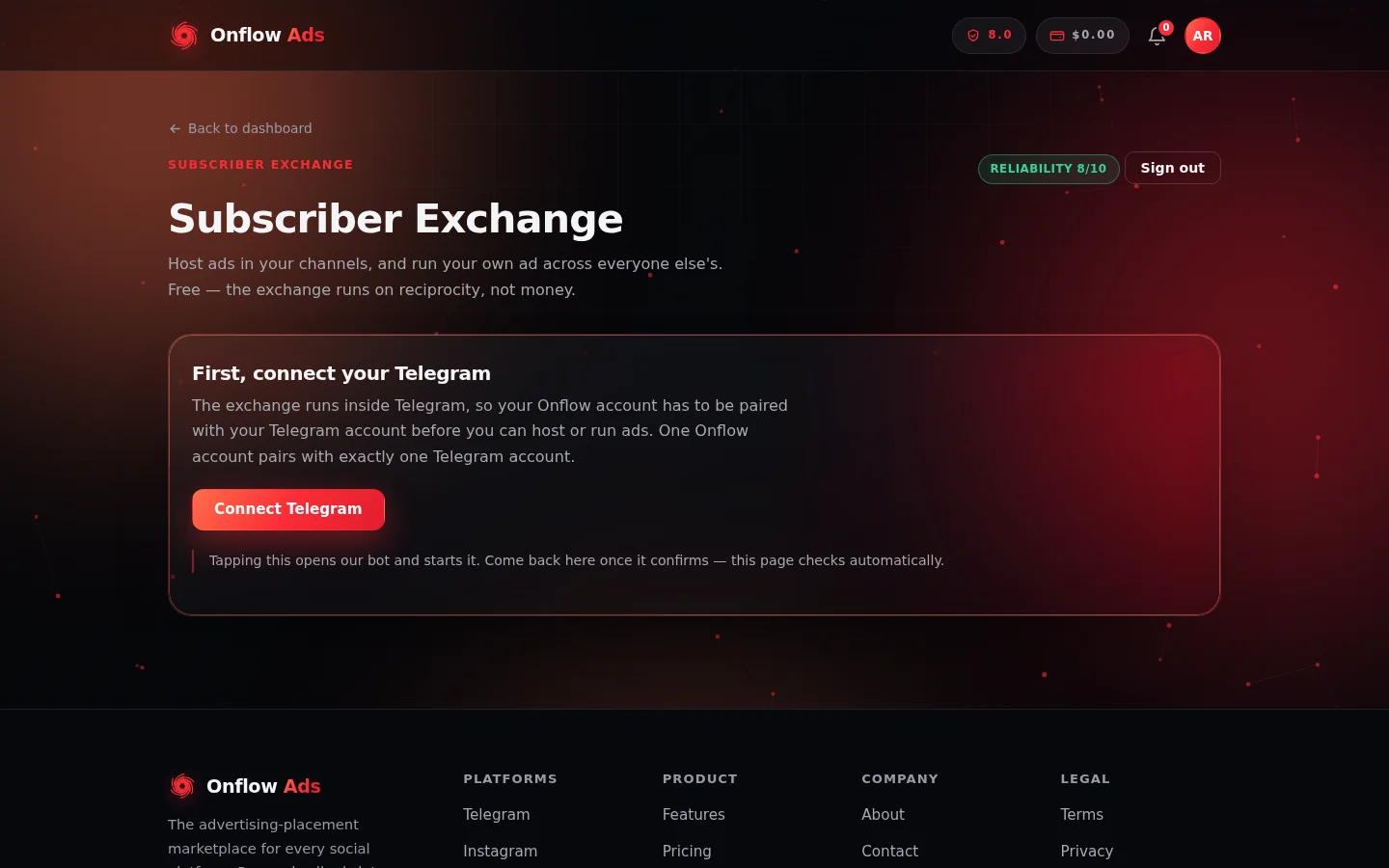
The starting screen. The note under the button — "this page checks automatically" — is why there is nothing to refresh once you have tapped Start in the bot.
- Open https://onflowads.com/telegram/dashboard/subscriber-exchange.
- If your Telegram is not linked yet, the page shows First, connect your Telegram. Click Connect Telegram.
- Telegram opens with our bot. Tap Start in the bot chat.
- Return to the exchange page. It checks automatically and continues to the hub the moment the link lands — there is nothing to refresh, and no button to press.
If it does not connect. The page waits a few minutes and then says "Still not connected. Reopen the link and tap Start." Click Connect Telegram again and make sure you tap Start inside the bot chat, not just open it.
Step 2 — Enrol your first channel
From the hub, open My channels and click Add a channel. (If the page is prompting you to host first, click Add my first channel — it opens the same wizard.)
A three-step wizard opens: Your channel, Add the bot, Content level.
2.1 — Which channel?
Enter your channel's public link or @username — for example @yourchannel or https://t.me/yourchannel — and click Continue.
2.2 — Add our bot as an administrator
The page shows the exact bot to add and the rights it needs. In Telegram, open your channel, go to Administrators, tap Add Admin, search for the bot named on the page, and grant it:
| Right | Needed | Why |
|---|---|---|
| Post Messages | Required | To publish the placement |
| Delete Messages | Required | To take the placement down after 24 hours |
| Edit Messages | Recommended | To correct a placement without reposting it |
There is an Open the bot button to jump straight to it. Once you have added it, come back and click I've added the bot — verify.
The exchange promises every placement comes down after 24 hours. Without delete rights the bot cannot keep that promise — for you, or for anyone hosting your ad — so it cannot enrol the channel without it.
The page also has an expandable panel, "Is it safe to give the bot Delete rights?". In short, with these rights the bot can only:
- post an exchange ad, then remove that same ad when its 24 hours are up,
- count the views and clicks on the ads it placed.
And it will never:
- delete or edit your own posts, or anyone else's — only the ads it placed itself,
- post anything above the content level you choose,
- see who your subscribers are. Telegram never gives a bot that.
If verification fails
The message names the exact problem, and the rights checklist highlights anything missing in red. Fix that one item and click verify again.
| Message | What it means | Fix |
|---|---|---|
| "We couldn't reach that channel" | The bot has not been added yet, or the username is wrong | Check the @username; add the bot as an administrator |
| "Only public Telegram channels can join the exchange" | The channel is private | Make it public, or enrol a different channel |
| "…is an admin but still needs: …" | The bot is an admin but a required right is off | Turn on exactly the highlighted right in the channel's administrator settings |
| "You must be an administrator of this channel to enrol it" | The Telegram account linked to Onflow Ads is not an admin of the channel | Ask the owner to make you an admin, or link the Telegram account that is |
| "That channel is already enrolled in the exchange by another account" | Another account holds this channel | A channel can only be in the exchange under one account |
| A channel-limit message | You are at your plan's channel cap | Withdraw a channel, or upgrade — the message names the next plan and its cap |
2.3 — Choose what you will host
Once verified, the page confirms the channel — "Verified [channel name] (@username) · 12,400 subscribers." — and asks: What will you host?
Pick the highest content level you are willing to accept. Each level includes everything below it, so choose carefully: this is what may appear in front of your subscribers.
| Level | Label | Accepts |
|---|---|---|
| 1 | General and Education | Courses, study material, tech, news, apps, general brands |
| 2 | Business and Commerce | Everything in level 1, plus e-commerce, services, jobs and paid tools |
| 3 | Finance, Trading and Crypto | Everything above, plus trading signals, investing, crypto and earning offers |
| 4 | Betting and Gambling | Everything above, plus betting, casino, poker, fantasy sports and lotteries |
| 5 | Adult | Everything above, plus adult and 18+ content. Only choose this if your channel is itself an adult channel |
Levels 3, 4 and 5 are marked Sensitive and require your explicit, informed opt-in. If you do not choose a level, the page says "Choose the highest level you'll host."
Click Join the exchange.
What happens the moment you enrol
- The exchange confirms: "your channel joined the exchange." If you were invited by another member and this is your first channel, the message also reads "🎁 you and the member who invited you each earned 100 SubX credits!"
- Your channel appears under My channels with a Hosting badge.
- The advertising side of the exchange opens immediately — you can create an ad straight away.
- Your channel enters the pool and may be matched with an ad from that point on.
Your level ceiling is not permanent. To change it, run Add a channel again for the same channel and pick a new level — re-enrolling updates the ceiling and keeps the channel's other settings. You can also refuse any individual ad penalty-free (see Refusing an ad) or require approval before anything posts (see Reviewing ads before they post).
A tour of the hub
Once you are set up, the exchange page shows:
- My channels and My advertisements tiles, each with a live summary — "3 channels hosting ads", "2 ads in the exchange".
- A live pool ticker in the header: "1,240 channels · 86 live now". Aggregate numbers only, never identities.
- A Reliability pill showing your score out of 10. Click it for the full breakdown at https://onflowads.com/telegram/dashboard/reliability.
- An exchange sync pill. "Exchange in sync" is the normal state; "Sync pending" appears briefly after a platform update and clears on its own.
- A How it works card with your plan's exact numbers: how many channels your ad will reach over 30 days, and the 24-hour hold.
- A Get set up checklist, until all three steps are done.
- On Elite plans and above, a Developer API card.
Two cards appear only when they apply:
- Ads waiting for your review — held ads needing your decision, if you have turned review on for a channel.
- Your exchange is paused — a standing banner, if a placement was removed early.
FAQ
Do I have to host to advertise?
Yes. The exchange is reciprocal, and this is the rule it is built on. If you would rather pay for reach without hosting, use Paid Promotions instead.
How many channels can I enrol?
5 on the Free plan, rising to 250 on Ultimate. The My channels header shows "N of N channels used".
Can I enrol a group instead of a channel?
No. The exchange works with public Telegram channels.
Will my channel start carrying ads immediately?
It becomes eligible immediately, but the first placement arrives when the matcher finds an ad that fits your level, size and topic. There is no fixed waiting time.
Can I enrol a channel and never host anything?
Not really — an enrolled channel that carries nothing takes reach from the pool without returning any. If you want a break, use Leave on the channel row; anything live finishes its 24 hours and you can re-enrol later with your settings intact.
What if I change my mind about the bot's rights?
Removing the bot's admin rights while a placement is live counts as breaking the 24-hour promise and is penalised. Withdraw the channel with Leave first, wait for anything live to finish, then remove the bot.
Next: Hosting ads — what actually happens in your channel now that it is in the pool, and every protection you have.