Wallet Overview
Your wallet is the prepaid balance at the heart of Onflow Ads. You add funds to it, spend that balance on platform services (Boost Metrics orders, paid ad placements, Premium plans and more), and — if you earn money as a channel owner through Paid Promotions — withdraw those earnings out of it.
All wallet balances are held in US Dollars (USD). You can display your balance in another currency for convenience, but the money itself is always stored, spent, refunded and paid out in USD.
Almost everything in this section happens on one screen:
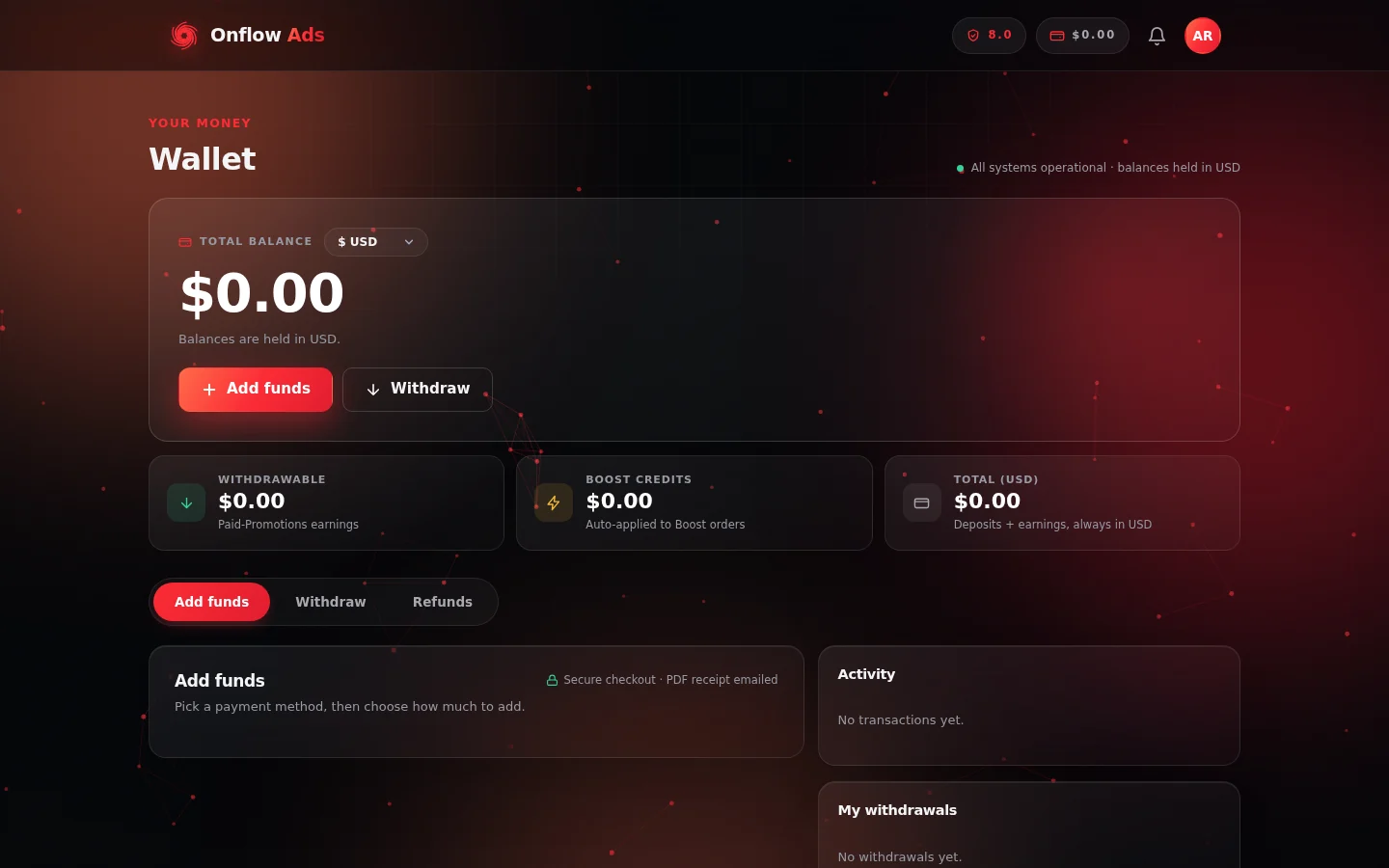
The wallet page. The balance panel sits at the top, the three stat tiles break that total down, the tab strip switches between the money flows, and the right rail keeps Activity and My withdrawals in view whichever tab you are on.
Who it is for
- Everyone with an Onflow Ads account — every purchase on the platform is paid from this one balance.
- Buyers — advertisers and Boost customers who top up and spend.
- Channel owners who earn from Paid Promotions and withdraw those earnings.
Where to find your wallet
| Page | Address | What it is |
|---|---|---|
| Wallet | https://onflowads.com/telegram/dashboard/wallet | The full wallet command centre — balance, tabs, activity, withdrawals. |
| Account → Wallet tab | https://onflowads.com/account | A compact version of the same wallet, inside your account settings. |
You must be signed in to open either page. Both read and write the same balance, so it does not matter which one you use.
Onflow Ads has a single wallet per account. Whether you arrive from the website dashboard, from your account settings, or from a checkout that asked you to top up first, you are always looking at the same balance and the same transaction history.
The three balance figures
The big number at the top of the wallet page is your Total balance. Below it are three stat tiles that split that total into what it is actually made of:
| Tile | Hint shown under it | What it means |
|---|---|---|
| Withdrawable | "Paid-Promotions earnings" | The only part of your balance that can be cashed out to an external destination. |
| Boost Credits | "Auto-applied to Boost orders" | A separate promotional pocket, spent before your cash on Boost orders. Never cashable. |
| Total (USD) | "Deposits + earnings, always in USD" | Everything together — your spendable wallet cash. |
Money you add yourself (top-ups), service refunds credited back to your wallet, and promotional credit are all spendable on the platform but not withdrawable. Only money you earn as a channel owner through Paid Promotions counts toward the Withdrawable figure. That is why your Withdrawable amount is usually lower than your Total balance — often zero if you have never sold a placement.
Full explanation, with examples: Your Balance and Transaction History.
The wallet tabs
Below the balance the page is organised into three tabs:
- Add funds — top up your wallet. See Adding Funds.
- Withdraw — request a payout of your Paid-Promotions earnings. See Withdrawing Your Earnings.
- Refunds — request a refund of a recent, unspent top-up. See Requesting a Top-up Refund.
The two buttons in the balance panel — Add funds and Withdraw — jump straight to the matching tab.
The always-visible right rail
Whichever tab you are on, the right-hand rail keeps showing:
- Activity — your most recent wallet transactions.
- My withdrawals — your recent payout requests and their statuses.
Both are covered in detail in Your Balance and Transaction History.
Good to know before you start
- You are never charged more than the total shown. Every top-up shows a live breakdown with a Total to pay line before you continue, and that is exactly what the checkout collects.
- Fees are added on top, never skimmed off. If you ask to add ₹5,000, ₹5,000-worth of USD reaches your wallet; the platform fee is stacked on top of what you pay. The percentage is set by your plan — see Deposit Fees and Your Plan.
- Large deposits can earn extra credit. When a deposit bonus is running, reaching a threshold adds free credit on top of your deposit — see Deposit Bonuses.
- Every credited top-up is receipted. A branded email with a PDF invoice is sent to your account email automatically.
- Topped-up money is spendable, not cashable. Only Paid-Promotions earnings can be withdrawn. A recent, completely unspent top-up can be requested back — see Refunds.
- Keep your account email correct and verified, or your invoices and payment notifications will not reach you.
In this section
The pages below run in reading order: read your balances, put money in, then take earnings out — followed by refunds and what to do when a payment goes wrong.
Your Balance and Transaction History
How to read your wallet page — what the Total, Withdrawable and Boost Credit figures mean, and what every line in your Activity ledger is telling you.
Adding Funds
What every top-up has in common — the two payment methods, the plan-based fee that is added on top rather than skimmed off, and the breakdown you approve before paying.
Deposit Fees and Your Plan
How top-up pricing works on Onflow Ads — the fee is added on top of the amount you choose, and the percentage you pay depends on the plan you hold.
Deposit Bonuses
Extra wallet credit for larger deposits — how bonus thresholds work, why only the highest one you reach applies, and where the current bonuses are shown before you pay.
Top Up with UPI or Card
The complete UPI, card and netbanking top-up flow on Onflow Ads — limits, fees, the INR to USD conversion, the Razorpay checkout, and every outcome.
Top Up with Cryptocurrency
The complete cryptocurrency top-up flow on Onflow Ads — limits, fees, the hosted crypto checkout, invoice expiry, underpayment rules, and every outcome.
Invoices and Receipts
The receipt email and PDF invoice Onflow Ads sends for every wallet top-up — how to read each line, what is on the PDF, and what to do if one is missing.
Currencies and Exchange Rates
How the USD wallet, the display-currency switcher and live exchange rates work on Onflow Ads, and exactly where a conversion does and does not happen.
Withdrawing Your Earnings
How to cash out your Onflow Ads Paid-Promotions earnings by Telegram Stars, UPI or USDT — eligibility, fees, monthly allowances, statuses and errors.
Refunds
The two kinds of refund on Onflow Ads — automatic service refunds back to your wallet, and requested top-up refunds paid out externally — with the full rules and fees.
Requesting a Top-up Refund
Step-by-step guide to asking Onflow Ads to refund a recent, unspent wallet top-up — eligibility, the fee quote, the crypto address rule, and how to track the request.
Payment Troubleshooting
What to do when a top-up, balance, withdrawal, refund or invoice misbehaves — the exact on-screen message you saw, what it means, and how to fix it.
Wallet and Payments FAQ
Quick answers to the questions people ask most about the Onflow Ads wallet — balances, top-ups, fees, invoices, withdrawals and refunds.
Next: Your Balance and Transaction History — what each figure on the wallet page actually means.